In this article
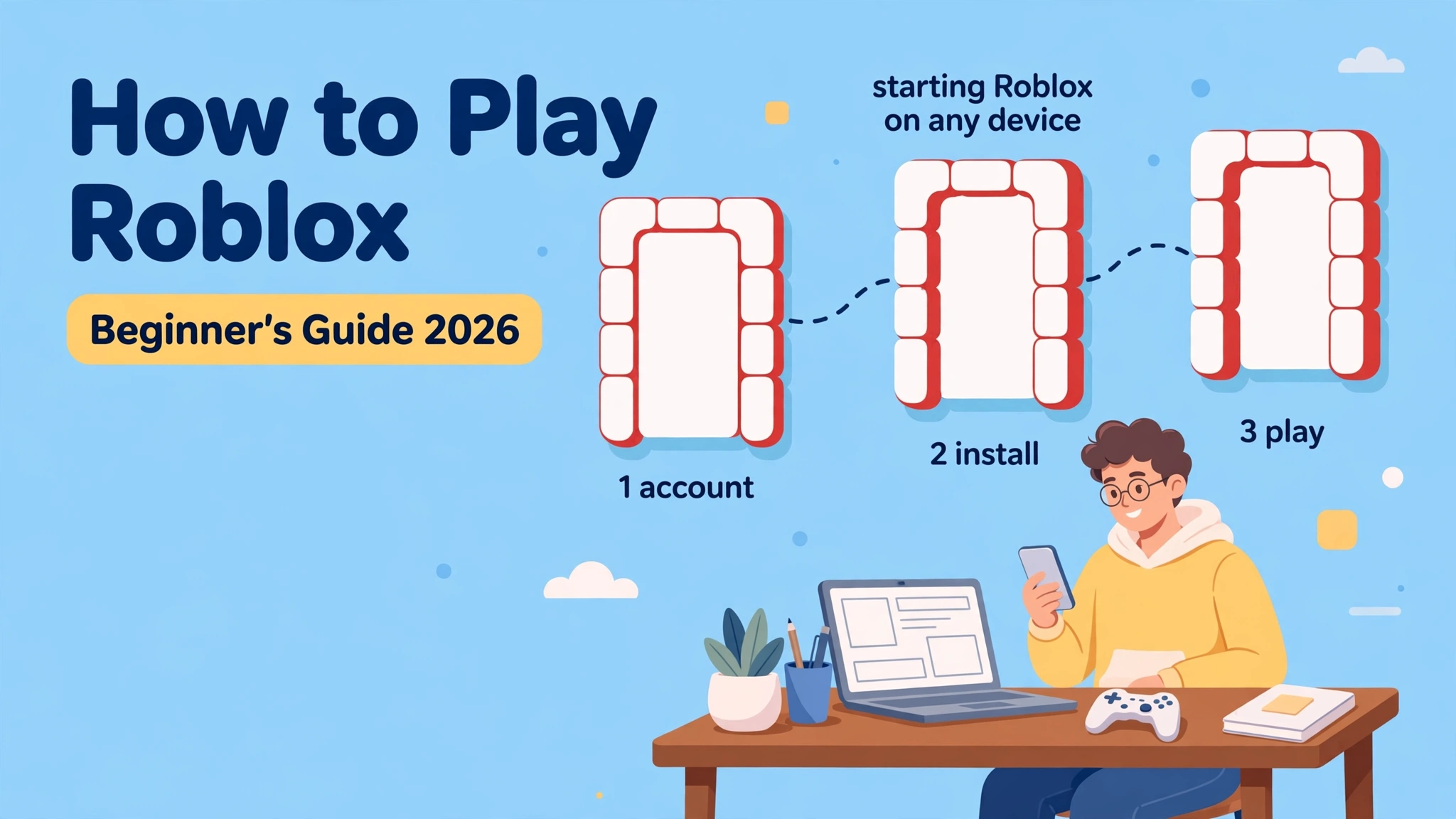
The short version of how to play Roblox: make a free Roblox account, install the Roblox app on your device (on a computer, the website offers the installer the first time you join something), sign in, pick an experience from the Home screen or the search bar, press the green Play button, and learn the controls while it loads. That loop is the entire idea. The rest of this guide shows how to play Roblox on PC, Mac, phones, tablets, Xbox and PlayStation, and then covers friends, Robux, safety and fixes for the most common problems.
Checked against Roblox’s own help pages and safety announcements on November 6, 2026. Roblox updates its menus often, so if a button on your screen is labelled differently from what you read here, trust your screen.
Quick Answer: How to Play Roblox in 7 Steps
- Create a Roblox account, or sign in to the one you already have.
- Install Roblox from your device’s official store, or let the website’s installer prompt guide you on a computer.
- Browse the Home screen or use search to find an experience.
- Open the experience page and read its description and content label.
- Press Play and wait for the world to load.
- Check the on-screen prompts or the in-game menu for controls.
- Play, then use the menu to leave when you are done.
Table of Contents
What Is Roblox?
Roblox is a platform, not a single game. Think of it as a very large arcade where every machine was built by a different person. Roblox calls those machines experiences: obstacle courses, pet-collecting worlds, role-play towns, racing tracks, scary mazes and thousands of others. You sign in once, keep one avatar and one friends list, and move from world to world without reinstalling anything.
That difference between the platform and the individual experience explains most beginner confusion. Two people can both say they are “playing Roblox” while looking at completely different screens, rules and goals.
Learning how to play Roblox therefore means learning two layers: the platform layer (accounts, menus, friends, settings) and the experience layer (the specific goal and controls of whatever you joined). If you want the wider background first, GamesPuma’s plain-English explainer on what the Roblox platform is covers the idea in more depth.
Is Roblox Free to Play?
Creating an account and joining experiences does not require payment, so a new player can start at no cost. Anyone wondering how to play Roblox on a budget can begin without paying anything. Roblox does sell an optional virtual currency called Robux, and individual experiences may offer extras such as cosmetic items or perks for sale. None of that is needed to begin.
Two honest caveats.
First, “free to start” is not the same as “never asks for money”: spending prompts can appear inside experiences, and every creator decides what to sell. Second, prices and purchase options vary by platform and region, so check the amount shown on your own screen.
On PlayStation, Roblox’s own help page notes that child accounts can only make purchases if the family manager has set spending limits, which is a useful rule of thumb for any household: decide on limits before the first session, not after the first surprise.
What You Need Before You Learn How to Play Roblox
To follow how to play Roblox on any device, you need three things: a supported device, a Roblox account and a working internet connection. Roblox’s help pages recommend at least 4 to 8 Mb/s for a single-user household, and more bandwidth if several people share the connection.
Here is what Roblox’s current help pages say about devices:
- Windows: 64-bit Windows 10 or Windows 11, DirectX 10 feature level or higher. Roblox recommends at least 1 GB of memory and about 300 MB of free storage.
- Mac: macOS 10.13 (High Sierra) or newer.
- Linux: not supported.
- Chromebook: Chrome OS 53 or newer, with the Google Play Store enabled first.
- iPhone and iPad: iOS 13 or iPadOS 13 or higher.
- Android: Android 8.0 or higher, with support for at least OpenGL ES 3.0.
- Amazon Fire tablets: specific models only, including Fire 7 (9th generation), Fire HD 8 (8th generation), Fire HD 10 (9th generation) and Fire Max 11 (13th generation).
- PlayStation 4 and 5: available in select countries.
- Xbox: Roblox has a dedicated Xbox app, and Roblox’s own PlayStation page lists Xbox players among the people you can play with.
Newly released or pre-release operating systems may not be supported right away. On Android, Roblox also explains that some devices show a “skippable” warning that the phone may struggle, while a small group of very old chipsets get an “unskippable” block on playing experiences.
Platform Comparison Table
| Platform | Roblox available? | Basic setup | How you control it | Important notes |
|---|---|---|---|---|
| Windows PC | Yes | Join an experience on roblox.com and accept the installer prompt | Keyboard and mouse | 64-bit Windows 10 or 11 required |
| Mac | Yes | Same website flow as PC | Keyboard and mouse | macOS 10.13 or newer |
| Chromebook | Yes, via Android app | Enable Google Play Store, install Roblox | Keyboard, mouse or touch | Chrome OS 53 or newer |
| iPhone / iPad | Yes | Install from the App Store | Touch | iOS or iPadOS 13 or higher |
| Android phone / tablet | Yes | Install from the official store | Touch | Android 8.0+, OpenGL ES 3.0 |
| Amazon Fire tablet | Yes, listed models | Install through the Fire tablet store | Touch | Only specific models are supported |
| Xbox | Yes | Install the Roblox app from the Xbox store, then sign in | Controller | Sign-in screen offers Create Account, Sign In or your Gamertag |
| PlayStation 4 / 5 | Yes, in select countries | Add Roblox to your library from the PlayStation Store | Controller | Rated “T for Teen” on PlayStation; use Quick Login to sign in |
| Linux | No | Not supported | n/a | No official client |
| Nintendo Switch | No | No official app | n/a | No announcement from Roblox; see GamesPuma’s Switch availability check |
Once you are inside an experience, how to play Roblox is similar on every row above. Availability can change by region and console generation, so confirm in your own device’s store before buying hardware just for Roblox.
How to Create a Roblox Account (Step One of How to Play Roblox)
Every platform ends up needing an account, so this is the first real step in learning how to play Roblox. The process is short:
- Open the Roblox website or the Roblox app.
- Because you are not signed in, the sign-up screen appears. Follow each prompt, which asks for details such as your birthday, a username and a password.
- Select Sign Up. Roblox then signs you in and shows the Home page.
A few choices are worth thirty seconds of thought:
- Enter your real birthday. Roblox uses age to place accounts into age-based settings for chat and content, and a wrong birthday can leave a player in the wrong tier.
- Pick a username that reveals nothing personal. Skip real names, schools and towns.
- Use a strong, unique password that you have never used on another site.
- Add and verify an email address. Roblox requires a verified email before you can switch on 2-Step Verification, and it is also your safety net if you forget a password.
If a child is signing up, a parent or guardian should sit alongside for this part and link their own account afterwards (see the safety section below).
How to Install Roblox
Installation differs by device, so follow the section that matches yours. The idea is the same everywhere: you install Roblox once, and every experience loads through it.
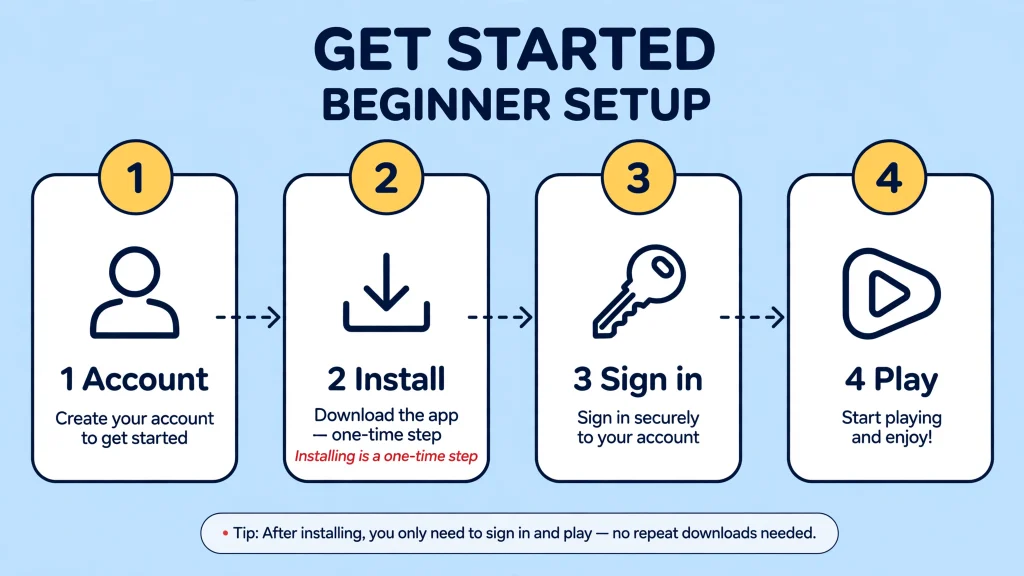
How to Play Roblox on PC: Install and Launch
- Open a supported browser. Roblox’s help page lists Chrome, Firefox and Microsoft Edge for Windows.
- Go to roblox.com and sign in.
- Open any experience and select Play.
- When the browser asks, allow the installer to download and run it.
- Return to the experience page and select Play again if it does not start by itself.
This is the safest route because the installer comes from Roblox’s own site. Avoid any page that offers a “Roblox booster”, “mod” or “premium client”.
How to Play Roblox on Mac: Install and Launch
The flow mirrors Windows. Sign in at roblox.com in a browser, open an experience, select Play, then open the downloaded Roblox application when prompted. Roblox’s requirements page asks for macOS 10.13 or newer.
How to Play Roblox on iPhone or iPad: Install From the App Store
- Open the App Store.
- Search for Roblox and check that the publisher is Roblox Corporation.
- Tap Get, wait for the download and open the app.
- Sign in or create an account.
You need iOS 13 or iPadOS 13 or higher. To check your version, open Settings, then General, then About.
How to Play Roblox on Android: Install and Sign In
- Open the official app store on your device.
- Search for Roblox, confirm the publisher and install it.
- Open the app and sign in.
Android 8.0 or higher with OpenGL ES 3.0 support is required. If you see a warning that your device may not be powerful enough, you can often tap outside the box and continue, though expect some lag. Chromebooks follow the same route once the Google Play Store is turned on.
How to Play Roblox on Xbox: Install and Sign In
Install the Roblox app from the Xbox store. When you launch it, Roblox’s help page says the home screen offers three options: Create Account, Sign In, or the Gamertag of the profile that is currently signed in.
Choosing Create Account or Sign In links that Roblox account to the active Xbox profile. A Roblox account can be linked to only one Gamertag at a time, and an Xbox child account needs permission from a parent in the Xbox family settings before it can launch the app.
If you linked the wrong account, you can unlink it from the Xbox app’s settings, or by opening the Security tab in Roblox account settings on the website.
How to Play Roblox on PlayStation: Install and Sign In
Roblox’s PlayStation FAQ gives these steps:
- Open the PlayStation Store on the console or on the web.
- Search for Roblox.
- Select the Roblox icon, choose Add to Library and follow the prompts.
- Start Roblox from your Game Library.
- Sign in with Quick Login, using your computer or phone.
Roblox is available on PS4 and PS5 in select countries, so check that your region’s store lists it. Only one Roblox account can be actively linked to a PlayStation Network account at a time.
How to Start Playing Roblox
Once the app is installed, this is how to play Roblox for the first time:
- Sign in. Use the account you created earlier.
- Find an experience. Start on the Home screen or type a name into search.
- Open the experience page. Read the description and check any content label before you join.
- Press the green Play button. On a phone, tapping an experience opens a small window with the Play button.
- Wait for loading. The first load of a new experience can take longer than later ones.
- Learn the controls. Look for on-screen hints, and open the menu if nothing explains them.
- Start playing. Try the first few minutes slowly. Most experiences teach the basics through their opening area.
Do not skip step 3. Reading an experience page takes under a minute and is the easiest habit for avoiding bad surprises, particularly for younger players.
How to Find Roblox Games
Choosing what to join is half of how to play Roblox, and Roblox’s creator documentation describes three main ways players discover experiences, and they match what you see in the app:
- Home: a personalised screen that includes a “Recommended for You” sort.
- Search: type a title or a topic you like.
- Discover: a page that highlights top and trending experiences.
For a first session, try one of these approaches:
- Follow your interests. If you like racing, searching “racing” gives a quick sample of what exists. Roblox sorts results on its own, so treat the first page as a starting point rather than a ranking.
- Ask a friend. An experience a friend already plays is the easiest way into multiplayer.
- Check the label. Experiences carry content maturity labels, and younger account types see only the lower tiers.
- Start with short experiences. Obstacle courses and small hangouts teach movement and camera control without long tutorials.
Browse in the official app or website only. Links from comments, videos or messages that lead to a login page are a common trick for stealing accounts.
How to Join a Roblox Game
Knowing how to join a Roblox game is the practical core of how to play Roblox, and there are several routes, all of which end at a Play or Join button.
From search or Home. Tap or click the experience, check the page, and press the green Play button.
From a friend’s profile. Roblox’s help center explains that you can join a friend who is already playing if they have the join setting turned on. Search for their username or open their profile, and a Join Experience option appears when they are in an experience and allow it. You also need permission to enter that experience. A friend in a restricted game or private server cannot simply pull you in.
From a private server. Some experiences offer private servers. Open the experience page, look for its servers section, and ask the server owner to add you or allow friends. Private server availability and price are decided by each creator, so some are free and some cost Robux.
On console. Open your friends list inside the Roblox app and join from there. Both players generally need to be friends on Roblox for this to work.
Roblox Controls for Beginners
Controls are the part of how to play Roblox that changes most between devices, and Roblox does not have one universal control scheme. Each experience can change what buttons do, add abilities or disable options.
What follows are the defaults you will meet most often, drawn from Roblox’s help material and from several guides that agree with each other. If a button does nothing, open the in-game menu and look for a Help or controls page.
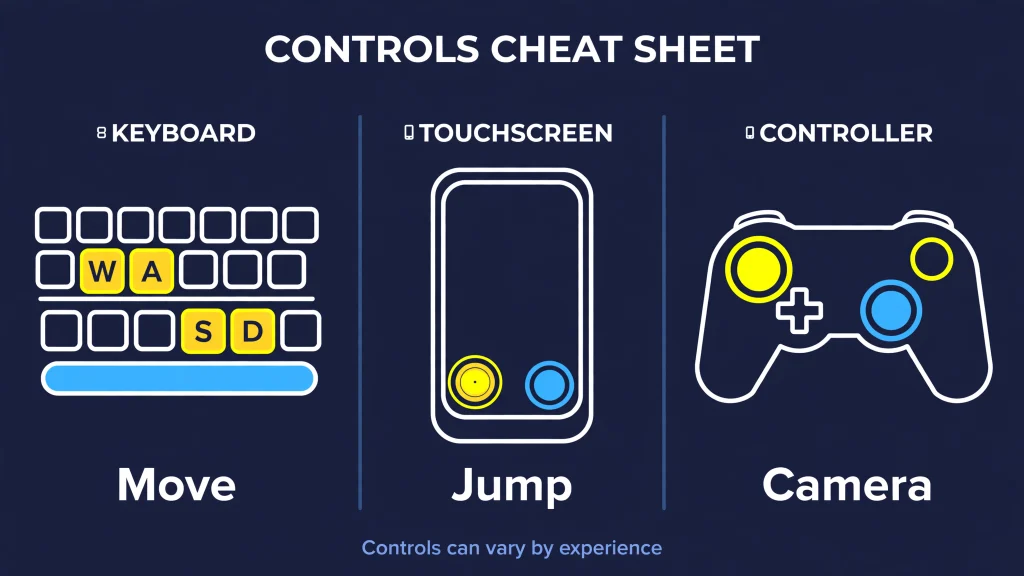
Roblox PC Controls: How to Play Roblox With a Keyboard and Mouse
- Move: W, A, S and D, or the arrow keys.
- Jump: Space.
- Look around: hold the right mouse button and move the mouse.
- Zoom: scroll the mouse wheel, or use I (in) and O (out).
- First person: zoom all the way in, if the creator allows it.
- Mouse lock (Shift Lock): press Shift in experiences that support it. You may need to enable the Shift Lock Switch in settings first.
- Use a held tool: left click, and number keys to switch tools.
- Menu: Esc opens the Roblox menu.
- Player list: Tab, in experiences that show one.
Roblox Mobile Controls: How to Play Roblox on a Touchscreen
- Move: drag the virtual thumbstick in the lower-left of the screen.
- Jump: tap the jump button in the lower-right.
- Camera: drag your finger across the main play area.
- Zoom: pinch.
- Menu: tap the Roblox icon at the top-left to open the menu, where the Leave option lives.
Roblox Console Controls: How to Play Roblox With a Controller
Roblox’s PlayStation FAQ says each experience has slightly different rules and controls, but most use the same general layout. It also explains where to see it: press Options on the controller to open the Roblox menu, press R1 for the Help tab, and L1 for the other tabs.
The left stick usually moves your character and the right stick the camera. The main face button, A on Xbox and Cross on PlayStation, is typically jump, although a creator can change that.
Roblox Controls Table
| Action | PC | Mobile | Console |
|---|---|---|---|
| Move | W A S D or arrow keys | Left thumbstick | Left stick |
| Jump | Space | Jump button, lower right | Face button (A on Xbox, Cross on PlayStation) in most experiences |
| Camera | Hold right mouse button and move | Drag on the screen | Right stick |
| Zoom | Mouse wheel, I and O | Pinch | Varies by experience |
| Open the menu | Esc | Roblox icon, top left | Options button on PlayStation |
| See the controller map | Check experience prompts | Check experience prompts | PlayStation: Options, then R1 for Help |
Individual experiences can add extra buttons, remove options or change defaults, so treat this table as a starting point.
How to Play Roblox With Friends
Playing together is where Roblox gets most of its energy, and how to play Roblox with others is simpler than it looks.
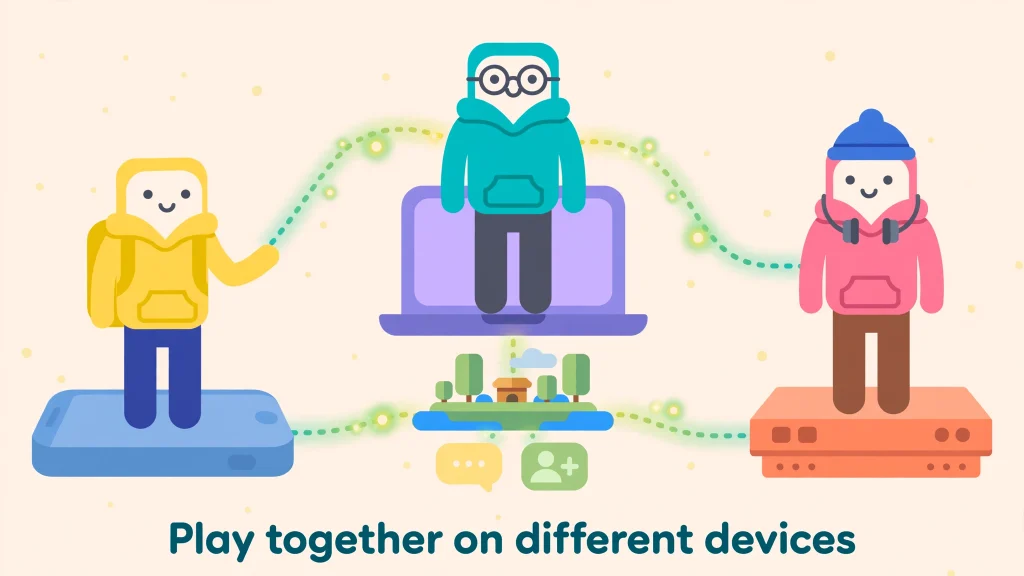
How to Add Friends
Roblox’s help center describes the steps:
- Type the person’s username into the search bar and select the People category.
- Open their profile.
- Select Add Friend.
If you do not see that button, you are probably already friends. You can check pending requests by selecting Add Friends, then accept or decline each one. Roblox currently allows up to 1,000 friends per account, and you can also meet people inside games and communities. Only accept requests from people you actually know.
Friends can do more than appear in a list. You can create private servers that only friends can join, and you can limit who can communicate with you through the Privacy & content restrictions tab in Settings.
How to Join Friends
Follow the “from a friend’s profile” steps above, or open your friends list on the Home screen and join from there. If the join button is missing, ask your friend to check their join setting and that the experience is open to you.
Chat and Cross-Platform Play
Chat has changed in 2026. Roblox now requires an age check, typically a facial age estimate, before anyone can use chat, and age-based rules decide who can talk to whom. Parental consent is needed for users under 9 to chat. If chat is greyed out for you, the missing age check is the first thing to look at. Voice and text options also depend on your account’s settings.
Roblox supports cross-platform play, so someone on a phone can usually join someone on a console. On PlayStation you can switch cross-platform play on or off in settings, and turning it off limits you to other PlayStation players. If a friend cannot join, mismatched settings are a common reason.
Do You Need Robux to Play Roblox?
No. A beginner does not need Robux to start. Robux is Roblox’s virtual currency, used for avatar items and optional perks inside experiences. Creators earn it when players spend it, which is why Robux is treated as part of Roblox’s economy and not as a game token.
If you decide to buy it, do so only through Roblox’s website, its official app or your console’s own store. On PlayStation, for instance, you tap the gold Robux icon in the top-right of the Roblox app.
Roblox also notes that gift cards cannot be redeemed on PlayStation, so a computer browser is needed for that. For the full set of official routes, see GamesPuma’s guide to legitimate ways to get Robux.
Treat every “free Robux” offer as a scam until proven otherwise. Fake generators, “verification” surveys, look-alike login pages and strangers asking for passwords or codes exist to steal accounts. No legitimate shortcut asks for your password. This guide will not help with hacks, exploits or ways to dodge purchases, because they put your account at risk.
How to Leave a Roblox Game
Knowing how to leave is part of how to play Roblox responsibly, because you can leave at any moment.
- On PC: click the Roblox logo at the top-left to open the menu, then click Leave or press the L key. A pop-up asks you to confirm, so click Leave again.
- On mobile: tap the Roblox icon at the top-left, tap Leave, and confirm.
- On PlayStation: press Options to open the Roblox menu and look for the leave option there.
Some experiences have their own exit points, but the menu route works in almost all of them. The wording on your screen may differ slightly from what Roblox’s help pages describe.
Beginner Tips: How to Play Roblox Without the Frustration
- Start small. Short experiences teach movement faster than long role-play worlds.
- Read in-game instructions. Many experiences explain controls in the first minute through signs or pop-ups.
- Check the menu early. The Help or settings page often reveals controls you would never guess.
- Play with people you trust. A friend who already knows an experience can save an hour of confusion.
- Adjust settings. Lower graphics quality can help on older devices.
- Protect your login. Never share your password or any verification code.
- Be careful with purchases. Decide limits before you hand over a card or a gift card.
- Avoid suspicious links. Open Roblox only from the official site or app.
- Take breaks. Long sessions in fast or tense experiences are tiring.
Roblox Safety Tips for New Players
Safe habits are part of how to play Roblox properly. Safety depends on account setup, the experiences you choose and ongoing conversation with whoever is playing. No platform is risk-free, and Roblox itself says no system is perfect.
Age Checks and Chat
In January 2026 Roblox began requiring facial age checks for all users who want to chat, rolling the rule out globally wherever chat is available.
After an age check, users fall into one of six chat age groups: under 9, 9 to 12, 13 to 15, 16 to 17, 18 to 20 and 21 and over. By default, a group can chat with the groups directly above and below it, which is designed to stop children under 16 from talking with adults.
Users 13 and older can use Trusted Connections to chat more freely with people they know. Roblox says it deletes the images used for age estimation immediately after processing, and users who dispute a result can appeal or use ID verification or parental controls.
Roblox’s safety page also describes age-based Roblox Kids (ages 5 to 8) and Roblox Select (ages 9 to 15) accounts with built-in game and chat restrictions. When that safety page was reviewed, it noted that these account types were rolling out by region, so check what applies where you live.
Account Security and 2-Step Verification
Roblox’s help center explains how to enable 2-Step Verification:
- Sign in, then open Settings (the gear icon on the website, or the three-dot menu then the gear in the app).
- Open the Security tab.
- Switch on your preferred method and follow the prompts.
You need a verified email address first. Roblox offers email codes, authenticator apps and security keys, and you can save one-time backup codes in a safe place. Never share a code with anyone, including someone claiming to be support.
Privacy, Reporting and Blocking
Use the Privacy & content restrictions area of Settings to control who can contact you. Roblox’s PlayStation page confirms that players can block another user, which stops voice and text chat with them, and can report rule violations to moderators. Teach younger players a simple routine: pause, block, report, then tell a trusted adult.
Personal Information and Scams
Roblox filters chat to hide personal details, but filters are not perfect. Never share your real name, address, school or phone number, and never move a conversation to another app with someone you only know from a game.
Parental Controls
Parents and guardians can link their own account to a child’s and manage chat, content and spending from there. Roblox’s Safety Center covers the setup steps. For a practical walk-through, see GamesPuma’s guide on whether Roblox is suitable for children.
Common Roblox Problems and Quick Fixes
When how to play Roblox hits a snag, start with the simplest fix and work down the list.
| Problem | What to try |
|---|---|
| Roblox will not open | Restart the device, then check that your operating system meets the requirements listed above |
| Roblox opens but an experience will not load | Check your connection, try Wi-Fi instead of mobile data, and try a different experience to see if the problem is specific |
| Slow loading or lag | Close other apps and downloads, and lower graphics quality if your device is older |
| Login problems | Use the Forgot Password or Username option, and check that you are on the official site |
| Xbox sign-in or “already linked” message | A Roblox account can link to only one Gamertag, so unlink the old pairing first |
| Android “device may not be powerful enough” warning | Tap outside the box to continue, or accept that very old devices may not run experiences |
| Chat is unavailable | Complete the age check Roblox now requires for chat |
| Still stuck | Reinstall Roblox only from the official site or store, then contact Roblox Support with the exact error message |
Roblox’s own mobile page also recommends switching to Wi-Fi if you are on a 3G or 4G connection and seeing problems. Outages happen too, so if everything on your side looks right, wait a little and try again.
How to Get Better at Roblox
Mastering how to play Roblox looks different in every experience, because Roblox has no single skill system and each world has its own rules. Improvement mostly comes from habits that carry across them:
- Learn one experience well. Depth in a single world beats shallow sampling.
- Watch how other players move. Their routes and timing teach faster than guessing.
- Practise camera control. Smooth camera movement is the most transferable skill on every platform.
- Use the menu. Settings, Help pages and sensitivity options exist for a reason.
- Play with friends who are better than you. It is a gentle way to level up.
- Know when to stop. Frustration is a signal to switch experiences or take a break.
Conclusion
Learning how to play Roblox comes down to a small number of repeatable steps: make an account with your real birthday, install Roblox from an official source, find an experience, read its page, press Play and check the controls.
After that, every new world is just another instance of the same routine. Add friends carefully, switch on 2-Step Verification, keep Robux decisions deliberate and treat free-Robux offers as traps. If something breaks, the table above handles most cases.
Roblox keeps changing its safety rules and menus, so use this guide as a map and the official help pages as the final word. Now you know how to play Roblox on any supported device. Pick one short experience and give it ten minutes.
Frequently Asked Questions About How to Play Roblox
How do you play Roblox for the first time?
Create a Roblox account, install the app on your device (or accept the installer prompt on a computer), sign in, choose an experience, and press Play. That is how to play Roblox for the first time on any supported platform.
Is Roblox free to play?
Anyone asking how to play Roblox for free can start at no cost, and Robux is optional. Some experiences sell perks or items, so read each experience page before spending.
How do you play Roblox on PC?
Here is how to play Roblox on PC: sign in at roblox.com, open an experience, select Play and accept the installer the first time. Windows needs 64-bit Windows 10 or 11, and Mac needs macOS 10.13 or newer.
How do you play Roblox on mobile?
Here is how to play Roblox on mobile: install it from your device’s official app store, sign in, tap an experience and press Play. iPhones and iPads need iOS or iPadOS 13 or higher, and Android needs 8.0 or higher with OpenGL ES 3.0.
How do you play Roblox with friends?
Here is how to play Roblox with friends: add them from their profile with the Add Friend button, then join them through their profile or your friends list when they are in an experience and allow joins. Some experiences also support private servers.
Can you play Roblox on Xbox or PlayStation?
Yes, and how to play Roblox on a console is mostly a matter of installing the app. Roblox has an Xbox app and a PlayStation app, and PlayStation availability depends on the country. Sign-in works differently on each console, as described above.
Can you play Roblox on Nintendo Switch?
Not officially, so there is no supported way to learn how to play Roblox on Nintendo Switch. Roblox has announced no Switch app, so avoid downloads that claim otherwise. GamesPuma’s Switch availability article tracks the current status.
Do you need Robux to play Roblox?
No. A beginner learning how to play Roblox can start without any Robux, and the only safe ways to buy it are Roblox’s own website, app and console stores.
What should you do if Roblox will not launch?
If you are stuck on how to play Roblox because it will not launch, restart your device, confirm it meets the requirements, check your internet connection, and reinstall only from an official source if needed. If the problem remains, contact Roblox Support with the error message.
Is Roblox safe for kids?
Parents asking how to play Roblox safely should know it can be suitable when the birthday is accurate, a parent account is linked, chat settings are reviewed and experiences are chosen with their content labels in mind. Supervision and conversation still matter.
Sources and References
- Roblox Help, Roblox system requirements (PC, Mac, Chromebook, Linux)
- Roblox Help, Roblox Mobile system requirements
- Roblox Help, PlayStation FAQ
- Roblox Help, Xbox One App: Logging into your Roblox account
- Roblox Help, Xbox One App: Trouble logging into Roblox account
- Roblox Help, How to make friends
- Roblox Help, How to follow or join another player in experiences
- Roblox Help, How to message and chat with friends
- Roblox Help, How to Leave an Experience
- Roblox Help, 2-Step Verification
- Roblox Newsroom, Facial Age Checks Now Required to Chat on Roblox
- Roblox Safety Center, Our approach to safety
- Roblox Creator Hub, Create a Roblox account
- Roblox Creator Hub, Discovery
- Google Play Editorial, How to find and join experiences in Roblox
- Roblox Developer Forum, How can I make Xbox and PlayStation support?
- GamesPuma, Can You Play Roblox on Nintendo Switch?
- Technobezz, How to Move and Use the Controls in Roblox on a Laptop (PC and mobile control details, cross-checked against other guides)

Written by Daniel Carter
Daniel Carter is a dedicated gaming writer who enjoys turning complex gaming topics into clear, useful, and engaging content. He covers game guides, tips, reviews, features, and the latest developments across the gaming world. His approach focuses on research, accuracy, and practical value, helping readers discover new games, improve their gameplay, and stay informed about the industry. For Daniel, great gaming content is not just about information—it is about making every article genuinely worth reading.