In this article
Fortnite loads, your squad is waiting, you press Play, and instead of the Battle Bus you get a message about a “content beacon.” Players type that into search as the internal content beacon error fortnite, and the first thing worth knowing is that the phrase is shorthand, not a title Epic Games prints on your screen. The wording Epic actually documents is Matchmaking Error (#2), which says Fortnite had trouble connecting to the content beacon service.
The short version: the internal content beacon error fortnite players report is a failed connection during matchmaking. Epic describes errors of this family as mainly caused by server maintenance or a network connection problem, so the sensible order is to check Epic’s status page, retry, and only then work through fixes on your own setup. This guide follows that order, labels what is confirmed and what is only an educated guess, and tells you when waiting is smarter than tinkering. Research was last checked on November 11, 2026.
Table of Contents
What Is the Internal Content Beacon Error in Fortnite?
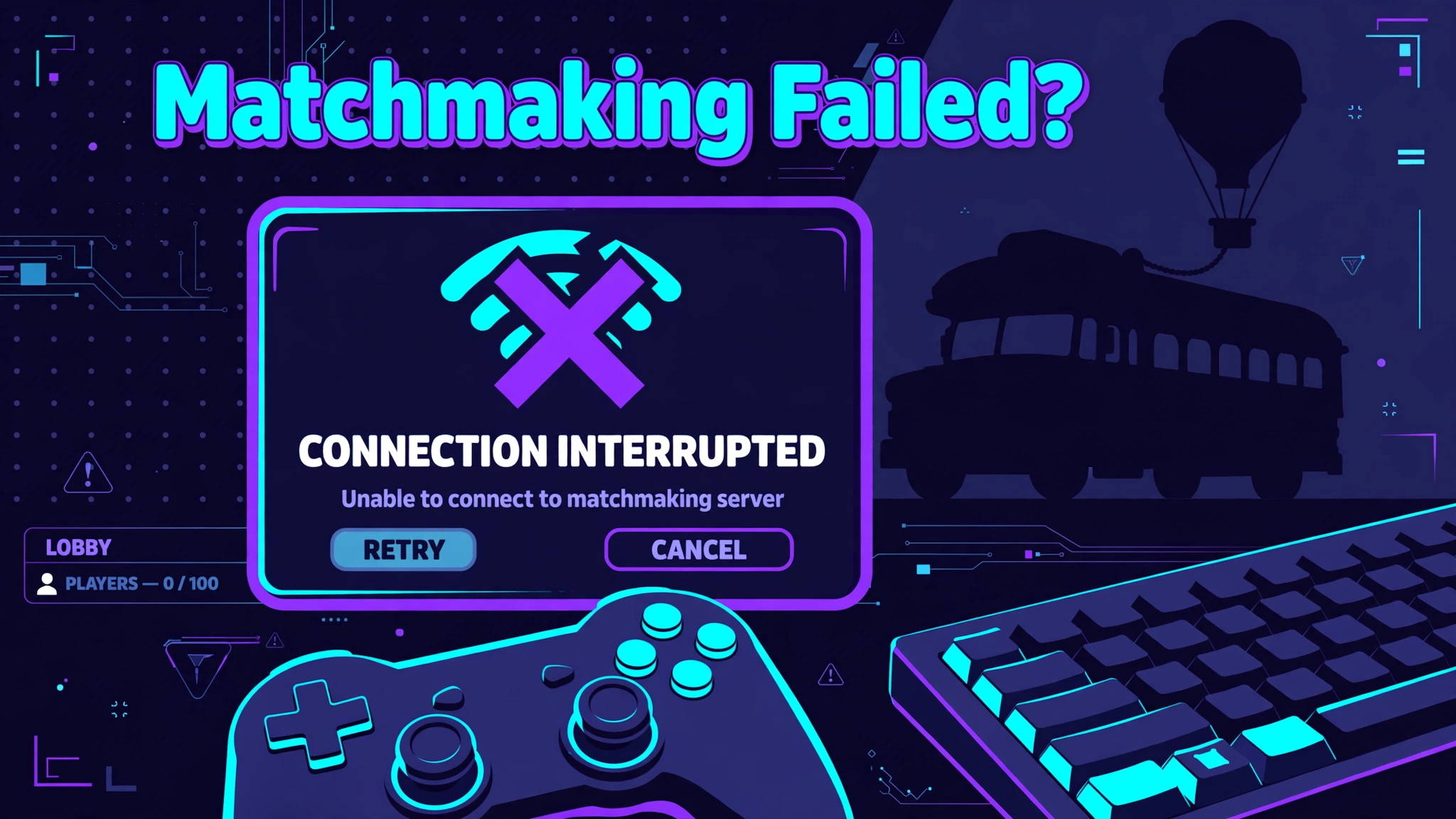
In plain terms, the internal content beacon error fortnite shows is a matchmaking failure. You pick a mode, Fortnite tries to place you into a match or island, and the connection to something Epic calls the “content beacon service” does not complete. You are dropped back to the lobby or left staring at a loading screen, and a message appears that begins “We had trouble connecting to content beacon service,” followed by a suggestion to try again and check Epic’s status page.
Here is what Epic’s own support documentation confirms about the internal content beacon error fortnite message, and what it does not.
Confirmed
- Epic lists this wording as Matchmaking Error (#2) in its help article covering matchmaking errors #1, #2 and #3.
- That article says the errors can appear when you queue for Battle Royale, Creative mode, or a tournament.
- Epic says the errors it lists are mainly caused by server maintenance or a network connection issue.
- Epic’s first instruction is to check its status page. If nothing is down, it points you to its connection troubleshooting guide, plus guides on the primary display card and on disabling background applications.
Not confirmed
- Epic has not published a technical description of what the content beacon service is or how it works. Some third-party guides describe it as the stage where matchmaking hands you to a game server. That is a plausible reading, but it is an interpretation, not Epic documentation.
- We found no Epic page that uses the exact string “Internal Content Beacon Error.” The word “internal” appears to come from searchers and forum posts, not from the game.
- No official source ties the internal content beacon error fortnite message to corrupted game files. Damaged files are a troubleshooting possibility, nothing more.
That separation matters because many pages about the internal content beacon error fortnite readers search for state a cause with total confidence. A few forum replies we reviewed offered a list of “usual causes” with no source behind them. Treat claims like that as guesses until Epic says otherwise.
Where the Phrase “Internal Content Beacon Error” Comes From
The phrase internal content beacon error fortnite has more than one meaning in the wild, and mixing them up leads people to the wrong fix.
- The Matchmaking Error (#2) message. This is the documented one, and it is by far the most common meaning behind the internal content beacon error fortnite searches.
- A “Content Beacon Error” reported by island creators. On Epic’s developer forums, creators using Unreal Editor for Fortnite have posted about a content beacon message when joining test sessions or private-code islands. One thread listed PC, PS5, PS4, Xbox Series S and Switch as affected. Another described a private-session join that loaded for a couple of minutes before failing. Those threads are a good reminder that the message can show up in custom-island contexts too, although they are not proof of a single shared cause.
- Forum shorthand. Some community answers use the internal content beacon error fortnite label loosely for any matchmaking failure, then attach a generic list of causes. Nothing in that wording is an official Epic term.
- A different Error #2 message. Epic also lists a second Matchmaking Error (#2) that says you do not have permission to play the content, tied to competitive events whose requirements you may not meet. If your screen says that, you are not dealing with the internal content beacon error fortnite message at all, and server fixes will not help.
Read your on-screen text word for word before you start fixing the internal content beacon error fortnite players describe. If it mentions the content beacon service, keep reading. If it mentions permission or tournament requirements, check Epic’s tournament eligibility guidance instead.
Is the Internal Content Beacon Error Caused by Fortnite Servers?
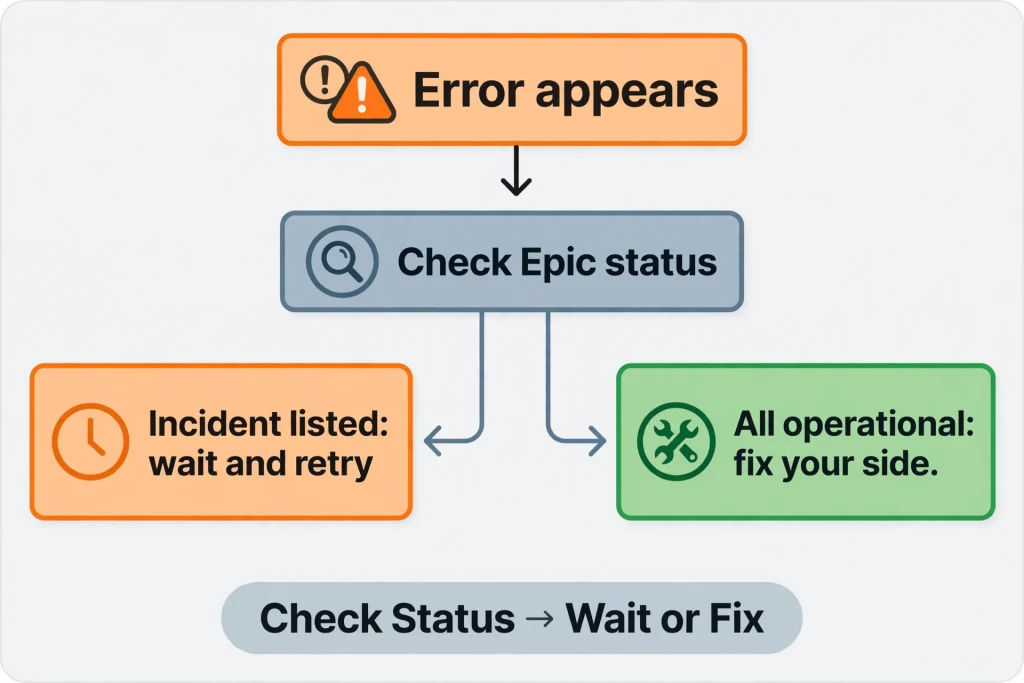
Sometimes, and you can check in under a minute whether your internal content beacon error fortnite message is server-driven. Epic documents server maintenance as one of the main causes of this family of errors, and its own advice begins with the status page. That makes server status the cheapest test you can run.
How to check
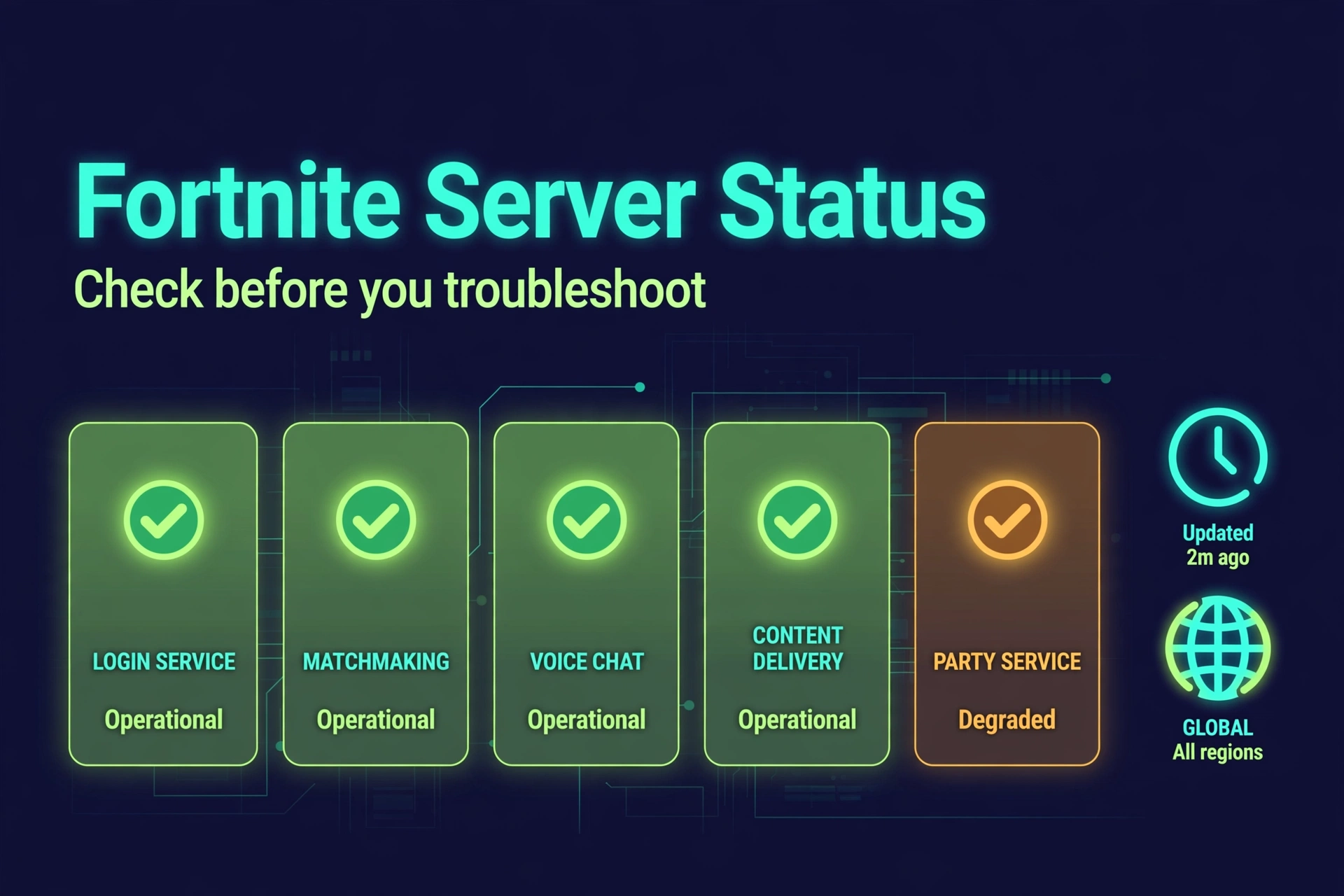
- Open Epic Games Public Status (status.epicgames.com). Look at the Fortnite section and its component rows, with special attention to Matchmaking, Login and Game Services.
- Check whether any active incident or scheduled maintenance is listed. Epic posts updates and a “Resolved” note when it is done.
- Look at the official @FortniteStatus account on X for short notices during live problems.
- As a secondary signal, glance at crowd-sourced outage trackers. They reflect user reports, not Epic’s confirmation, so a spike there is a hint rather than proof.
What the history shows
Matchmaking trouble is not new. Epic’s public status archive includes resolved Fortnite matchmaking incidents on June 2, 2026 and June 11, 2026, and an earlier one resolved on November 21, 2025. Older coverage of the same message from earlier Fortnite seasons also describes matchmaking outages that began right after an update. The pattern: the internal content beacon error fortnite message has appeared in the past during platform-wide matchmaking disruptions, and those were temporary.
What we can and cannot say about today
When this article was researched on November 11, 2026, we did not find an Epic-confirmed incident specifically tied to the content beacon message. We could not load the live status page directly, so we cannot tell you what it shows at the moment you read this. The only reliable answer is the one you get by opening it yourself.
Outage versus personal problem
A real outage behind the internal content beacon error fortnite message looks the same for everyone: the status page shows a degraded or down component, social channels fill with identical complaints, and your friends on other connections hit the same wall. A personal connection problem looks different: status is clean, other online apps on your network also feel unstable, or only one device in your household fails. Being able to tell the two apart saves you from reinstalling a large game during an outage that no reinstall can fix.
Possible Causes of the Internal Content Beacon Error in Fortnite
Because Epic has not published a root cause for the internal content beacon error fortnite, the list below mixes documented causes with plausible ones. Each item is labeled so you know how much weight to give it.
Server maintenance or a matchmaking incident (documented)
Epic names server maintenance as a main cause of this error family, which makes it the first suspect for the internal content beacon error fortnite. Likelihood: high, especially around updates and launch days. Test: status page and @FortniteStatus. Matching action: wait and retry, with no changes on your end.
Heavy load around an update or new season (plausible, partly supported)
Past reports link the internal content beacon error fortnite message to the hours after a patch, when everyone tries to queue at once. We found no Epic statement that load is the cause every time. Likelihood: moderate right after an update. Test: does the problem fade within a few hours while your setup stays untouched? Action: patience.
An outdated game client (plausible)
If Fortnite or your platform is a version behind, your client may not agree with what the servers expect. Epic does not list this as a cause of this specific message, but updating is cheap and standard. Likelihood: low to moderate. Test: look for a pending update. Action: install it.
Network connectivity or router trouble (documented direction)
Epic names network connection issues alongside server maintenance. Likelihood: moderate when status is clean. Test: do other online games, video calls or streams struggle on the same connection? Action: restart your modem and router, then work through the connection guide.
DNS problems (supported by Epic’s connection guide)
Epic’s connection guide lists switching to a public DNS and flushing DNS on Windows among its steps. Likelihood: low to moderate. Test: the error persists while the rest of your connection looks fine. Action: change DNS using Epic’s instructions.
An inaccurate device clock (supported by Epic’s connection guide)
Epic’s guide includes syncing the clock on your device. A wrong date or time can interfere with secure connections. Likelihood: low, but easy to rule out. Action: set date and time to automatic.
Platform cache issues (supported by Epic’s connection guide)
Epic lists resetting your device’s cache as a step. Likelihood: low to moderate. Action: follow Epic’s per-platform cache instructions rather than improvising.
Corrupted or incomplete game files (possibility, PC mainly)
Not documented for this message. Verifying files is a standard PC step and Epic’s matchmaking page itself does not mention it, so treat this as a low-probability candidate worth checking after the basics. Test: run the launcher’s file verification.
Background software, proxies or VPNs (supported)
Epic’s matchmaking article links its guide on disabling background applications, and its connection guide mentions identifying and disabling proxy servers. Likelihood: moderate on PC if you run security tools, overlays or a VPN. Action: close them temporarily and test.
Platform service trouble (possible)
PlayStation Network, Xbox services, Nintendo online services or your PC’s launcher can have their own problems. Epic itself tells Xbox players who see “Error Connecting to Epic Services Queue” to contact Microsoft Support. Test: check your platform’s own service status page.
Account or session glitches (possibility)
A stale session after a long play stretch can behave oddly. This is not documented for the content beacon message, so it ranks low, but a full restart is free.
Quick Diagnosis: Is It You or Epic?
Use these indicators for the internal content beacon error fortnite as hints, not guaranteed verdicts.
- Status shows a Fortnite matchmaking problem, or many players report the same message right now: likely service-side. Wait.
- Status is operational and only your device fails: investigate local causes, starting with a restart and your network.
- The error began right after a Fortnite update: investigate update compatibility. Confirm the update finished on your device, then expect that Epic may need to adjust things.
- The internal content beacon error fortnite vanishes after you restart Fortnite or your device: likely a temporary session or client hiccup, though a single success does not prove the cause.
- Another device on the same network connects to Fortnite fine: your original device or its settings are the better suspect than your internet provider.
- Every online game on your network misbehaves: look at your router or internet service first.
11 Fixes for the Internal Content Beacon Error Fortnite Players See
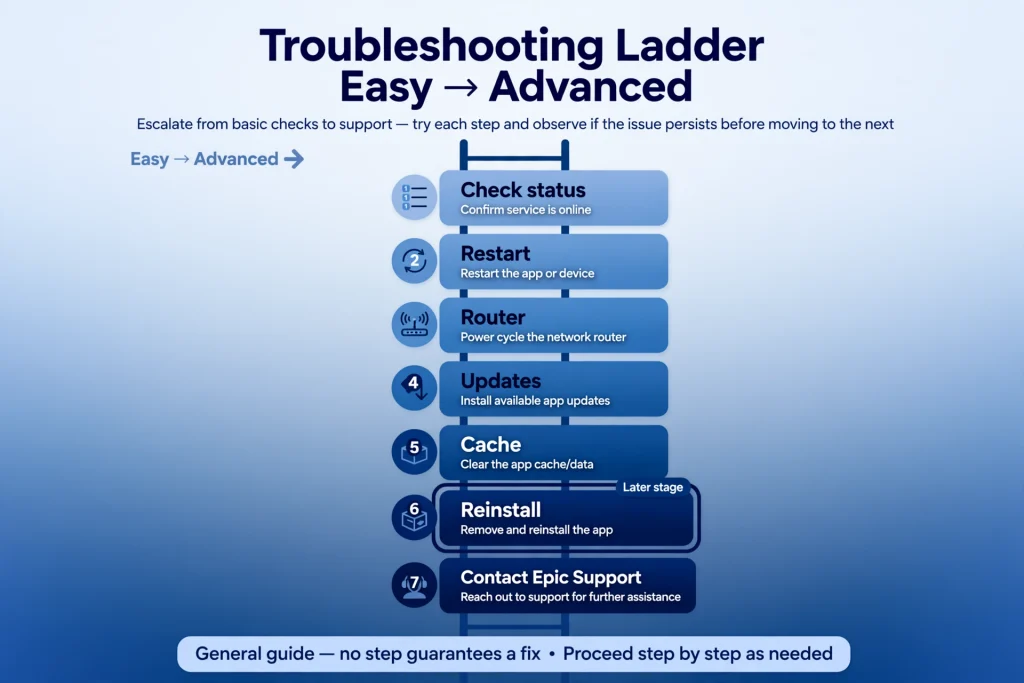
Work from the top when fixing the internal content beacon error fortnite. Test after each step so you know what helped.
Fix 1: Check Fortnite server status
Open Epic’s public status page and the Fortnite status account. If Matchmaking or related components show an incident or maintenance, the internal content beacon error fortnite is likely connected to it, so stop here. Nothing you change on your side repairs a server problem. Retry periodically.
Fix 2: Restart Fortnite
Close the game completely rather than backing out to the lobby. A fresh launch creates a new session, which can clear a temporary internal content beacon error fortnite failure. Epic’s own message also suggests giving it another shot, so a retry or two is reasonable before anything else.
Fix 3: Restart your gaming device
Shut down your PC, PlayStation, Xbox or Nintendo Switch and turn it back on. On PC, use a proper restart rather than leaving it sleeping. On consoles, a full power cycle is better than rest mode. Restarting clears temporary memory and background processes that can interfere with network calls.
Fix 4: Check for Fortnite updates
Make sure Fortnite is fully updated before you test the internal content beacon error fortnite again. See the platform notes below, because menus differ. An unfinished or pending update is a common reason a game misbehaves online.
Fix 5: Restart your router and modem
Following Epic’s router guidance, turn off the device you play on, unplug the modem and router, wait at least a minute, plug them back in, wait for the lights to settle, and then start your device. If you use an Ethernet cable, check that both ends are seated.
Fix 6: Test your internet connection
Run a basic check on the same device where the internal content beacon error fortnite appears: can it load a website, stream a video, or join a call without stalling? You do not need a specific speed number. What matters more is stability, since a connection that drops packets can fail a handshake even when speed tests look good. If you can, try a different connection, such as a mobile hotspot, to learn whether your home network is the problem.
Fix 7: Check platform services
Look at your platform’s own service status: PlayStation Network, Xbox network status, Nintendo online service status, or your launcher’s status on PC. If the platform is struggling, Fortnite can fail even when Epic’s servers are healthy.
Fix 8: Verify game files on PC
On PC, open the Epic Games Launcher, go to your Library, click the three dots beside Fortnite, choose Manage, and select Verify. The launcher then compares your installed files with the expected ones and repairs differences. This is safe and does not delete your account or progress. It is most useful if you suspect damaged files, though Epic does not list it as a documented fix for the internal content beacon error fortnite message.
Fix 9: Clear cache
Epic publishes platform-specific cache instructions for PC, PlayStation, Xbox, Switch and Android. Follow Epic’s own page for your platform instead of using a random tutorial. As a rule, a cache reset clears temporary data and should not remove your account, purchases or save data, but read Epic’s page for your device before you start. Do not delete files by hand unless Epic’s instructions tell you to.
Fix 10: Reinstall Fortnite
Treat this as a late step. A reinstall can take hours depending on your connection and storage, and it cannot repair a server-side issue, so a reinstall rarely solves a server-driven internal content beacon error fortnite. It is reasonable if file verification found problems it could not fix, or if every other step failed while status looked clean for a long period. Some players report that reinstalling did not help, which is another reason to try it last.
Fix 11: Contact Epic Games Support
If status is clean, you have worked through the steps above, and the internal content beacon error fortnite continues for a day or more, contact Epic Games Support. Include the exact on-screen message, the platform, the mode you were queueing for, roughly when the problem began, and what you already tried. A screenshot helps. Mention any other matchmaking codes you see.
Epic’s connection guide also lists extra advanced steps, such as switching to a public DNS, syncing your clock, disabling proxies and flushing DNS on Windows. If you reach this point and want to go further before contacting support, use Epic’s guide for those so you follow current steps.
Platform-Specific Notes
Most advice for the internal content beacon error fortnite applies to every platform, so the general steps above are not repeated here. These notes only cover what differs.
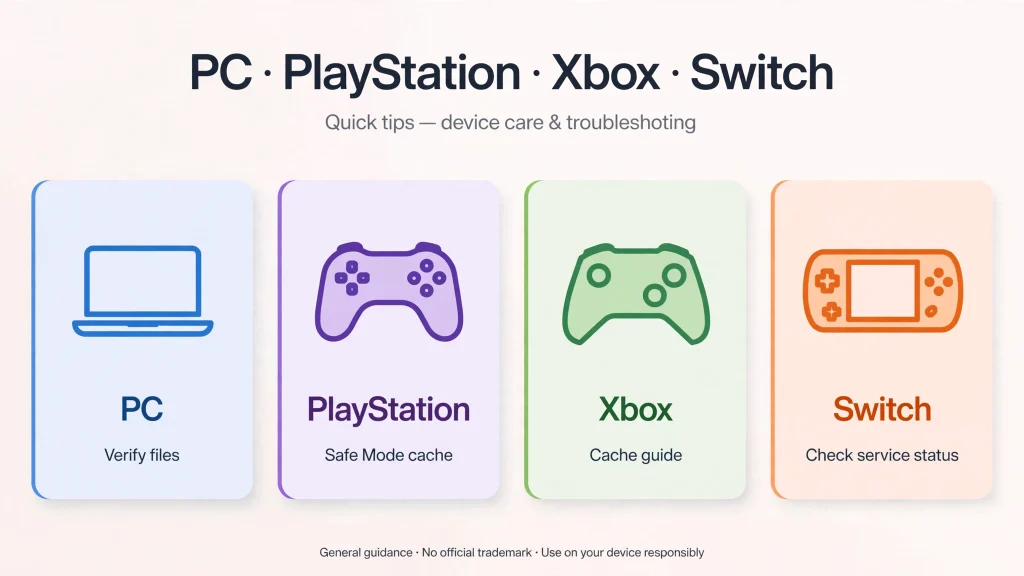
PC. For the internal content beacon error fortnite on PC, you have the most tools: launcher file verification, launcher cache clearing, disabling background applications, and checking for proxies or a VPN. Epic’s matchmaking article also links a guide on setting your primary display video card. Windows updates are also part of Epic’s connection checklist.
PlayStation 4 and PlayStation 5. Epic lists a Safe Mode route for cache resets and recommends a wired connection for PlayStation in its DNS guidance. Check PlayStation Network status if Epic’s status is clean.
Xbox One and Xbox Series X|S. Use Epic’s Xbox cache guide. If you see “Error Connecting to Epic Services Queue” rather than the content beacon message, Epic directs you to Microsoft Support.
Nintendo Switch. Epic points Switch players to Nintendo’s own cache reset steps. Check Nintendo’s online service status as well.
Mobile. Epic’s cache page includes Android; its list did not show an iPhone or iPad entry. If the internal content beacon error fortnite appears on a phone or tablet, try switching between Wi-Fi and mobile data to see whether your home network is the issue.
How to Check for a New Fortnite Update
Fortnite updates arrive often, and the internal content beacon error fortnite players report sometimes shows up around those releases, so confirm your game is current. Do not rely on menu paths from old guides, because every platform changes its interface.
- PC: open the Epic Games Launcher and check the Fortnite entry in your Library for a pending update. The launcher shows its update status next to the game.
- PlayStation, Xbox and Switch: look at the game’s entry in your console’s library or home screen. Each console labels update options differently, so use the console’s own update indicator for Fortnite.
- In the game: an outdated client often prompts for an update when you launch.
Why this matters for the internal content beacon error fortnite: online games compare your client version with what the servers expect. A mismatch, or a half-finished download, can cause content-loading and connection errors. Epic does not state that this is the cause of the content beacon message, but a current client removes one variable.
At the time of research, third-party trackers listed Fortnite as being in a Chapter 7 mini-season, with version 43.00 mentioned. Because versions change, check the number shown in your own launcher or console rather than trusting any article, this one included.
When to Wait Instead of Troubleshooting
Sometimes the most effective fix is patience. Hold off on repeated changes when:
- Epic’s status page shows a matchmaking incident or scheduled maintenance.
- Many players report the same internal content beacon error fortnite message at the same time.
- The problem started right after a major update or season launch.
- Epic or @FortniteStatus acknowledges the issue.
In those situations the internal content beacon error fortnite is out of your hands, and reinstalling Fortnite, resetting your console or editing network settings usually changes nothing, because the failing part is on Epic’s side. Check the status page now and then, retry every so often, and avoid piling up unneeded changes that you later have to undo. Do not expect a specific fix time unless Epic gives one. Past incidents were marked resolved on Epic’s status page, but each had its own timeline.
What Not to Do
When the internal content beacon error fortnite will not go away, scammers and sloppy tutorials move in. Avoid:
- Downloading unofficial Fortnite clients or “launchers.”
- Using modified game files or “optimizers.”
- Running “error fix” executables, unknown DLL downloads or registry cleaners.
- Installing suspicious VPNs or tools that promise to fix matchmaking.
- Sharing your account with someone who promises to fix or bypass the error, or contacting fake Epic Games support accounts on social media.
- Using cheats, exploits or unverified scripts.
None of Epic’s documented steps for the internal content beacon error fortnite involve paid software or random downloads. A third-party tool cannot repair a problem inside Epic’s servers, and a bad download can bring malware or put your login at risk. If you want to protect an account that holds a large locker, our guide on Fortnite account value explains why Epic does not allow accounts to be sold or traded, and why shortcuts are never worth it.
Also keep in mind what third-party sites can and cannot tell you. A stats site such as the one covered in our Fortnite Tracker guide is useful for checking player stats, but it is not a source for live server health. In the same way, a community database like Fortnite DB, which focuses on Save the World, will not tell you whether matchmaking is down. For service status, go to Epic. And if a younger player in your household is the one hitting the error and asking for “fixes” online, our summary of the Fortnite age rating is a useful companion for judging what is appropriate to download or click.
Internal Content Beacon Error Fortnite FAQ
What is the internal content beacon error in Fortnite?
The internal content beacon error fortnite is the common search phrase for Matchmaking Error (#2), whose documented text says Fortnite had trouble connecting to the content beacon service. It stops you from entering a match or island. Epic has not published a technical definition of the service itself.
How do I fix the internal content beacon error in Fortnite?
To fix the internal content beacon error fortnite, check Epic’s status page first. If everything is operational, restart Fortnite, restart your device, restart your router, make sure the game is updated, sync your clock, and use Epic’s cache and DNS guides. Reinstall only late, and contact Epic Games Support if it persists.
Is Fortnite down when the internal content beacon error appears?
Not always, but maybe. Epic lists server maintenance as a main cause of this error family, so you must check the status page. If it shows no incident and your connection is the only one failing, the problem is more likely local.
Why does Fortnite show the internal content beacon error?
Epic attributes errors of this type mainly to server maintenance or network connection issues, so the internal content beacon error fortnite most likely points to one of those two areas. Beyond that, the exact trigger is not documented, so anyone claiming a single definite cause is guessing.
Can restarting Fortnite fix the internal content beacon error?
It can when the cause is a temporary session or connection glitch. Close the game fully and relaunch. If the failure is a server incident, a restart will not help.
Can an outdated Fortnite version cause this problem?
Epic does not list an outdated client as a cause of the internal content beacon error fortnite message, but a client that is behind can cause online problems in general. Updating is quick, so do it early.
Does the error affect PC and console players?
Yes. Epic’s article covers Fortnite in general, and creator reports on Epic’s forums mention PC, PS5, PS4, Xbox Series S and Switch. Your fixes differ slightly by platform, mostly in cache steps.
Should I reinstall Fortnite to fix the internal content beacon error?
Only as a late step. Reinstalling costs time and bandwidth, and it cannot fix a server-side matchmaking problem. Try status checks, restarts, network steps and file verification first.
How do I check Fortnite server status?
Open Epic Games Public Status and read the Fortnite components, especially Matchmaking, then check the @FortniteStatus account on X. Third-party outage sites add user reports but are not official.
When should I contact Epic Games Support?
Contact support when status is clean, your steps have not helped, and the internal content beacon error fortnite lasts a day or more. Bring the exact message, platform, mode, timing and a list of what you tried.
Sources & References
- Epic Games Help, “Why am I getting matchmaking error #1, #2, or #3 in Fortnite?” — https://www.epicgames.com/help/en-US/c-Category_Fortnite/c-Fortnite_TechnicalSupport/why-am-i-getting-matchmaking-error-1-2-or-3-in-fortnite-a000086857
- Epic Games Help, “How to troubleshoot connection issues” — https://www.epicgames.com/help/c-34254770/a23475992
- Epic Games Public Status — https://status.epicgames.com/
- Epic Games Public Status, “Fortnite Matchmaking Issue” (resolved June 2, 2026) — https://status.epicgames.com/incidents/kjz4qdtdb64b
- Epic Games Public Status, “Fortnite Matchmaking Issue” (resolved June 11, 2026) — https://status.epicgames.com/incidents/sf1y5y81tm2l
- Epic Games Public Status, “Fortnite Matchmaking Issues” (resolved November 21, 2025) — https://status.epicgames.com/incidents/zx3byknfyzbv
- Epic Developer Community Forums, “Beacon error everytime we attempt to start the match” — https://forums.unrealengine.com/t/beacon-error-everytime-we-attempt-to-start-the-match/2379409
- Epic Developer Community Forums, “When I try to enter a private session this appears.” — https://forums.unrealengine.com/t/when-i-try-to-enter-a-private-session-this-appears/2632487
- Twinfinite, “How to Fix Fortnite Matchmaking Error 2” (earlier-season coverage) — https://twinfinite.net/guides/how-to-fix-fortnite-matchmaking-error-2/
- Wikipedia, “Fortnite” (season context as of November 2026) — https://en.wikipedia.org/wiki/Fortnite

Written by Daniel Carter
Daniel Carter is a dedicated gaming writer who enjoys turning complex gaming topics into clear, useful, and engaging content. He covers game guides, tips, reviews, features, and the latest developments across the gaming world. His approach focuses on research, accuracy, and practical value, helping readers discover new games, improve their gameplay, and stay informed about the industry. For Daniel, great gaming content is not just about information—it is about making every article genuinely worth reading.